About this manual

This manual provides information about setting up your Tech-Magnet All-in-One PC. Please carefully go through the following steps:

Package contents
Tech-Magnet All-in-One PC
AC Adapter
Power Cord
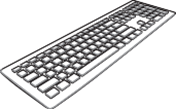
Keyboard
Mouse (optional)

Note

                   If any of the items is damaged or missing, contact our support team.

             The Tech-Magnet All-in-One PC illustration is for reference only. Actual product specifications may vary with models.


             The keyboard, mouse, and power supply illustrations are for reference only. Actual product specifications may vary with territories.

Hardware Setup

Front View:

Positioning your All-in-One PC

  • Place your Tech-Magnet All-in-One PC on a flat surface such as a table or
  • Tilt the display to an angle between -5° to 20°.
  • IMPORTANT: Use both hands when setting up your TECH-MAGNET All-in-One PC.

    Avoid adjusting the display to an angle beyond the recommended values or you may risk damaging the TECH-MAGNET All-in-One PC

REAR VIEW:
  1. Display Port: This port allows you to connect your Tech- Magnet All-in-One PC to another Display Port- compatible device for file sharing or extending your display. 
  2. VGA: This port allows you to connect your Tech-Magnet All-in-One PC to another Display which is VGA- compatible device for file sharing or extending your display.
  3. USB 2 Gen 1 port: This USB 3.2 Gen 1 (Universal Serial Bus) port provides a transfer rate of up to 5 Gbit/s. 
  1. USB 0: This USB (Universal Serial Bus) port is compatible with USB 3.0, 2.0 or USB 1.1 devices such as keyboards, pointing devices, flash disk drives, external HDDs, speakers, cameras and printers. 
  1. Ethernet/LAN Port: This 8-pin RJ-45 LAN port supports a standard Ethernet cable for connection to a local. 
  1. Power Input: The bundled power adapter converts AC power to DC power for use with this jack. Power supplied through this jack supplies power to the Tech- Magnet All-in-One.
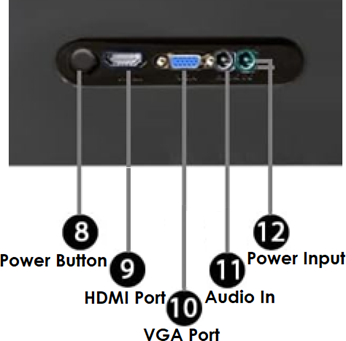
  2. Monitor Power button: Press this button to turn on your Monitor for your Tech-Magnet All-in-One PC.
  3. HDMI Port: This port allows you to connect your Tech- Magnet All-in-One PC to another HDMI-compatible device for file sharing or extending your display monitor.
  4.  VGA Port: This port allows you to connect your Tech- Magnet All-in-One PC to another Display which is VGA- compatible device for file sharing or extending your display monitor.
  5. Audio Input: Audio in or line-in is a 3.5mm jack which enables users to connect to an external audio device like speakers and microphones.
  6. Power Input: The bundled power adapter converts AC power to DC power for use with this jack. Power supplied through this jack supplies power to the Tech-Magnet All- in-One PC. To prevent damage to the PC, always use the bundled power adapter.

Note:

·       To prevent damage to the Tech-Magnet All-in-One PC, always use the bundled power adapter.

·       The power adapter may become warm or hot when in use. Do not cover the adapter and keep it away from your body.

Connecting the wireless keyboard and mouse

  1.  Install batteries into the wireless keyboard and mouse(Note: We recommend using new batteries for best performance.)

2. Connect the wireless dongle for keyboard and mouse to a USB port to automatically pair both devices to your Tech-Magnet All-in-One


  1.